Agents ▸ Providers & budgets
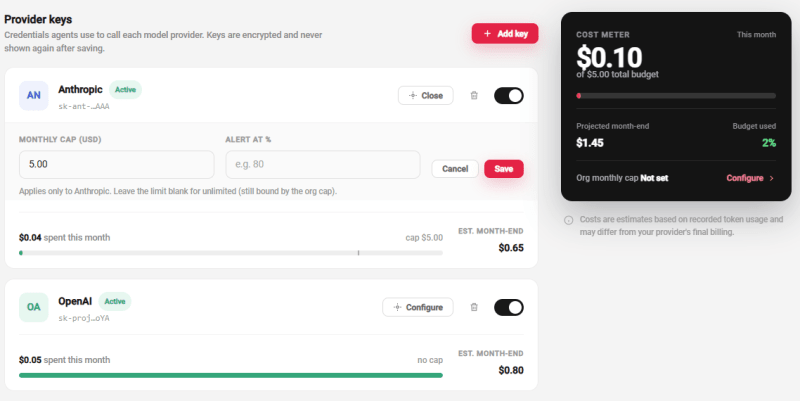
Agents call an AI provider using your own account and your own API key. Core dna does not resell model access. This screen is where those keys are stored and where you cap what agents are allowed to spend.
Access to this screen requires a superadmin user. If you are an admin without superadmin rights, ask a superadmin to add the key for you.
Supported providers
- Anthropic (Claude)
- OpenAI (GPT)
- Google (Gemini)
You can store a key for each. Which one an agent actually uses is decided per install, and falls back to the client default set under Agents ▸ Configuration.
Adding a key
Under Provider keys, open Add key, choose the provider and paste the API key.
The key is validated with the provider before it is saved. A key that the provider rejects is never stored, so a save that succeeds means the key worked at that moment. It is then encrypted and stored, and never shown again. Only a masked preview is displayed afterwards.
Saving a key for a provider that already has one replaces it. The old key cannot be recovered, so make sure you still have it elsewhere if you need it.
Each key can be switched off with its enable/disable toggle without deleting it, useful for pausing agent activity on one provider while leaving its budget history intact. Removing a key entirely stops every agent that depends on it.
Setting a budget
Each key has its own Configure panel with two settings:
- Monthly cap (USD): the most agents may spend against this key in a calendar month. Leave it blank for unlimited.
- Alert at %: the point at which the cost warning appears and a notification is sent.
There is also a client-wide cap under Agents ▸ Configuration, which applies across all providers. Whichever limit is reached first stops agent runs.
When a cap is reached, agent runs stop with the termination reason Monthly cost cap reached. Nothing is lost. The jobs can be re-run once you raise or remove the cap.
Reading the cost meter
The Cost meter on the right shows agent spend this month, the monthly cap, the org-wide cap, budget used as a percentage, and a projected month-end figure based on the current run rate.
These are estimates, calculated from recorded token usage and published model prices. They will not match your provider's final bill exactly. Treat them as a safety valve and a trend indicator, not as accounting.
Key status
Each key card shows one status:
| Status | Meaning |
|---|---|
| Active | Working normally. |
| Near cap | Spend has passed the alert threshold. |
| Cap reached | The monthly cap is exhausted; agent runs on this key have stopped. |
| Disabled | Switched off with the toggle. Agents will not use it. |
| Key unreadable | The stored key cannot be decrypted. See below. |
"Key unreadable"
This status means the stored key can no longer be decrypted, so agents cannot use it. It is not something you caused by editing the key, and re-enabling it will not help.
It normally follows a platform-level configuration change on the environment, most often a restored or re-provisioned configuration file. When it happens, every stored key for every client on that environment is affected at once, and agent runs stop with the termination reason API key unusable.
The fix is to enter each provider key again on this screen. Saving re-encrypts the key under the environment's current configuration, so it works immediately without anything being restored first. There is no way to recover the previous keys, which is why keeping your provider keys retrievable from your own password manager matters.
If you see this status, tell your Core dna contact as well. The underlying cause is on the environment, not in your client's settings, and other clients on the same environment will be affected too.
Cost alerts
When spend crosses the alert threshold, a notification appears in the admin notification bell with a Review spend limits action linking back to this screen. Raising the cap or the threshold clears the warning.