Permissions video
This video will bring you through some of the basic concepts. 5:02 minutes.
The permission system co-ordinates who has access and control, a so-called Access Control List (ACL) for each piece of content stored on Core dna.
Accessing the permissions system
There are a number of ways that you can access the controls, these operate up to three different levels
Module Level
Module Section Level (for some modules)
Individual Content Level
The lower levels can overwrite the level of access set above it. Access and controls is generally set by site administrators, but it is possible to grant user groups access to control this feature.
Best practice is to set permissions at the highest level first, and then on the lower levels, this helps to avoid confusion. For example, should someone only need to edit content under a certain node of your tree, you could add them (or a user group) to this particular node for editing. They should have, by default, access to read the content, but not to edit. On the content node you want to grant them access, you should then enable them to edit from this level.
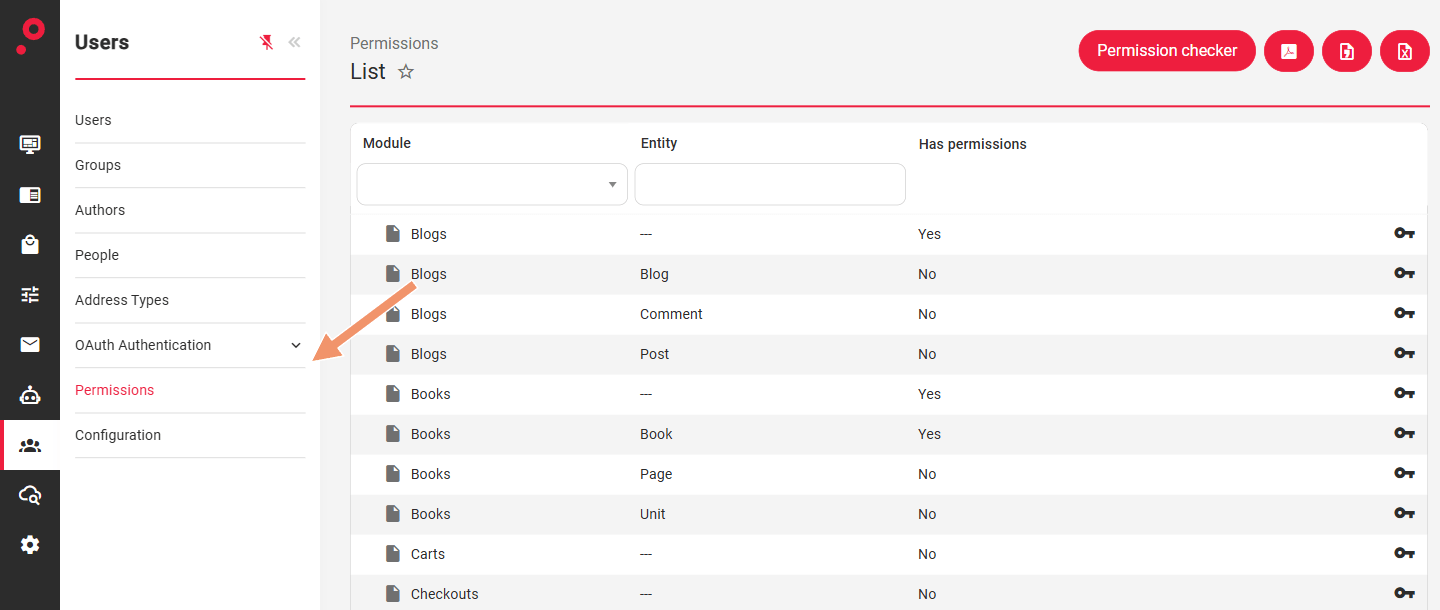
This is found under Users » Permissions
Overall permissions, on the highest level can be set here:
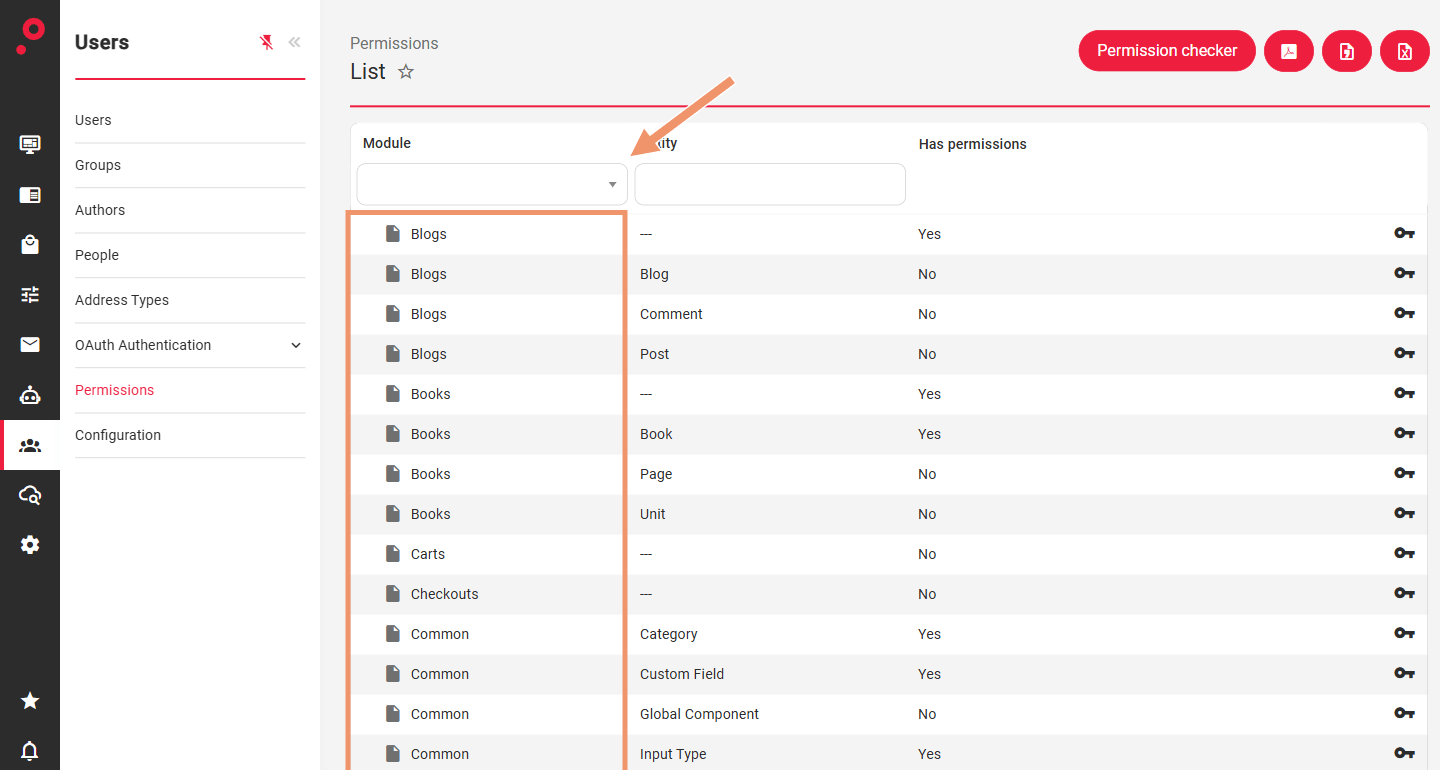
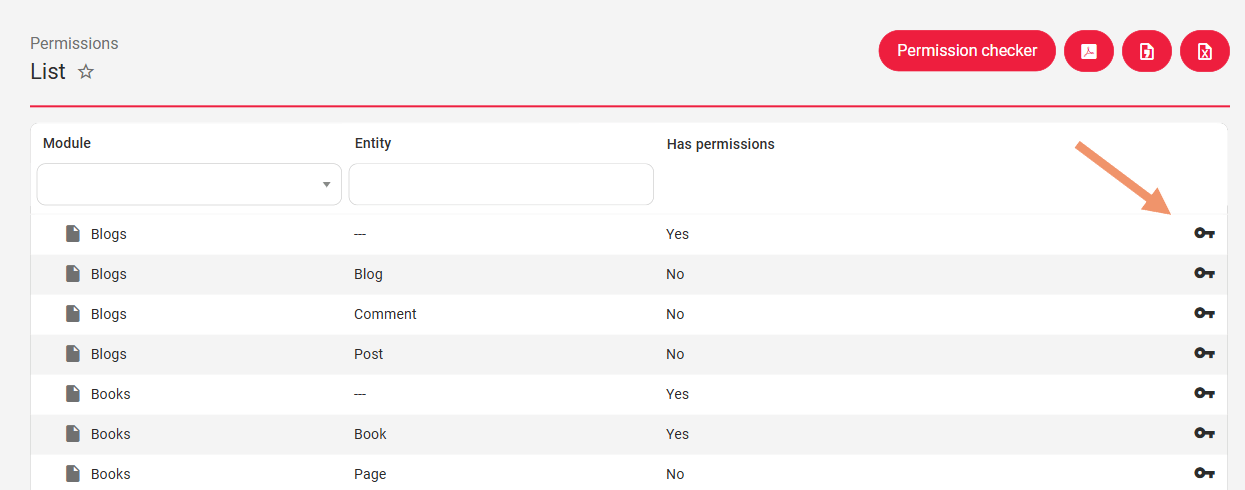
A permission settings page for each module can be accessed by clicking on the “edit permissions key” action positioned at the last column within the table view:
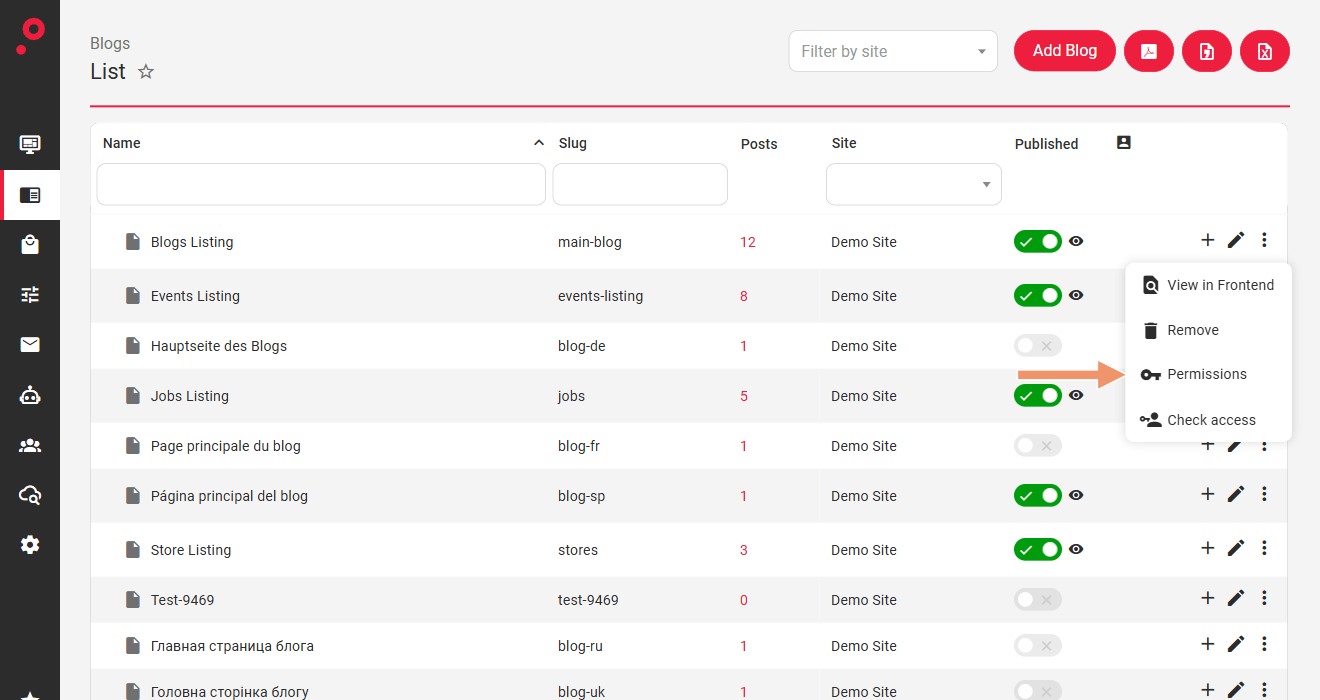
For certain modules you may be able to have permissions on the module section, where are is an additional hierarchy level to set permissions. e.g. Blogs. This permission control is found under Content » <MODULE_NAME> » List » ⋮ » Permissions, e.g. Content » Blogs » List » ⋮ » Permissions
This is found under Content » <MODULE_NAME > » List » ⋮ » Permissions e.g. Content » Pages » List » ⋮ » Permissions
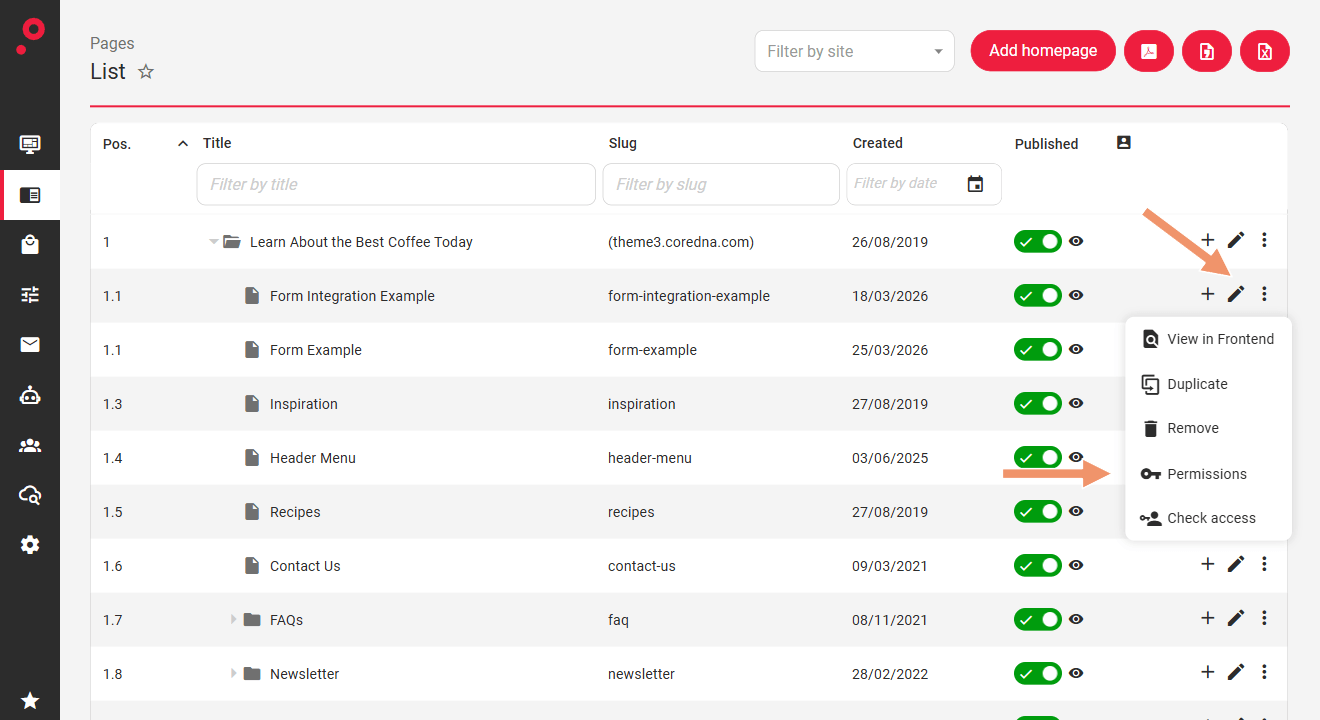
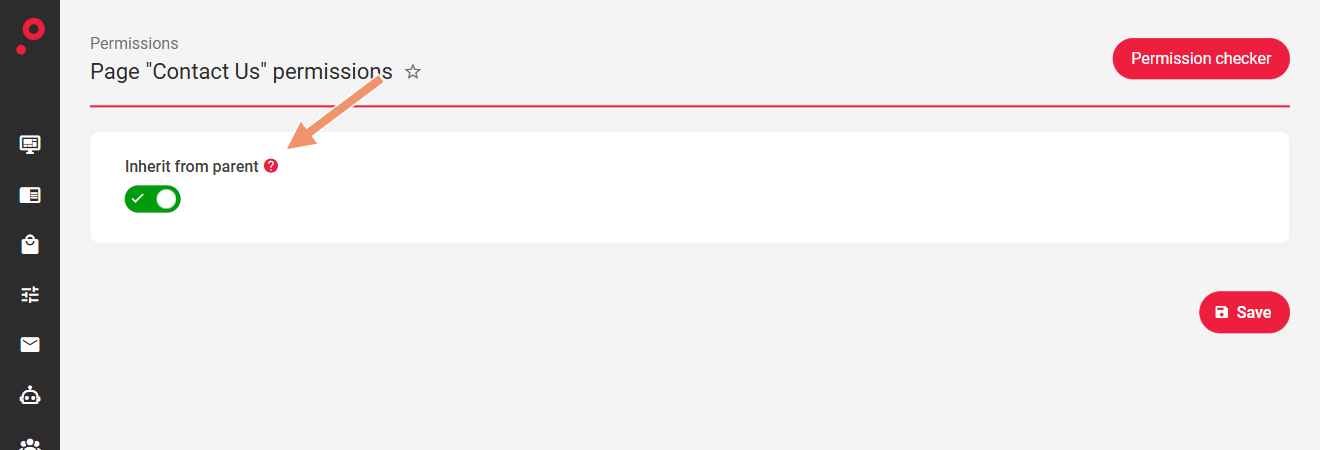
You may see that the record's permissions can inherit from their parent. In the case that this is set, the content will inherit from its parent. To override this, and to set access for the individual piece of content you can set this to false.
Once set to false the permission settings for the record will show:
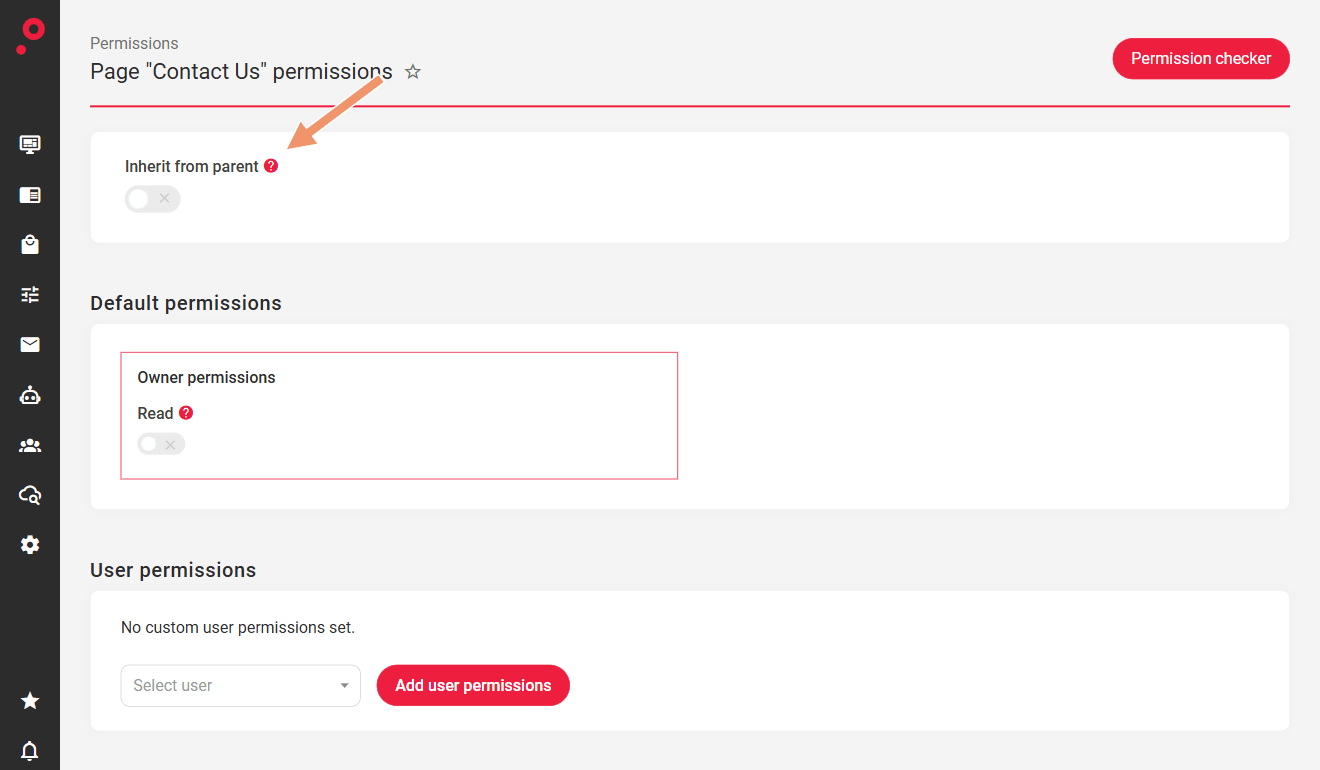
Permissions Setting page is divided into these main configuration sections:
Default Permissions
Used to configure default permissions for all Users & Groups
User Permissions
Used to configure permissions for specific users only
Group Permissions
Used to configure permissions for specific groups
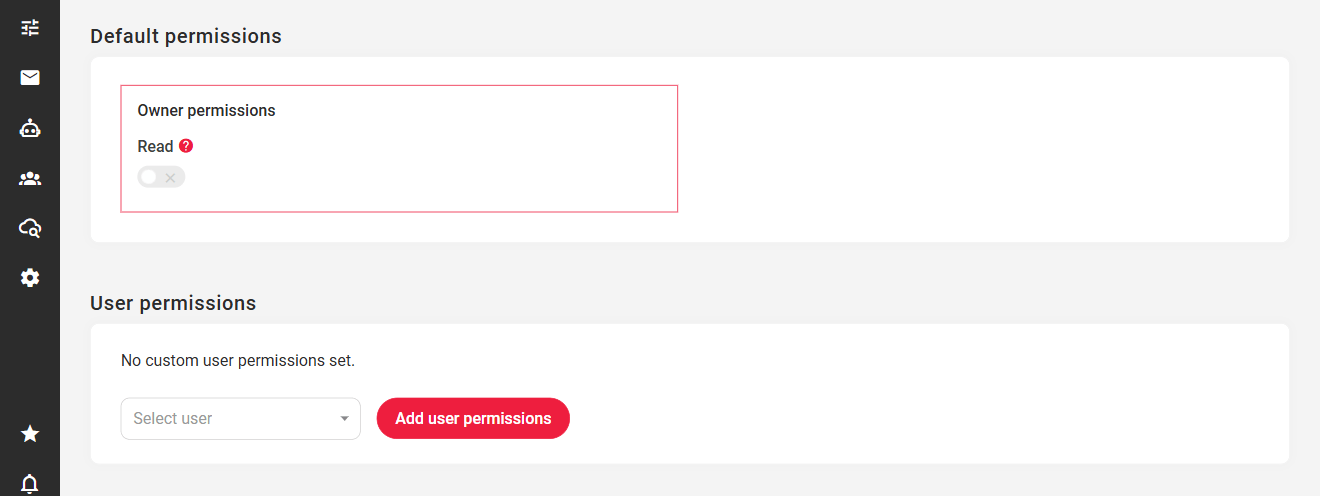
There are a number of permissions that can be set, here is an overview of what they can do
READ - can view this content
CREATE - can create sub-content under this content node
EDIT - can amend the content
DELETE - can delete the content
PUBLISH - can publish (make viewable to the world) the content
ADMIN - can manage and set permissions for this content piece and sub-content pieces
Additionally, there are two different types of permissions
OWNER PERMISSIONS - each piece of content can have an owner, this owner can have additional permissions, these permissions can be outside of what they normally can do. For example, you may allow an owner of the content to 'Publish' changes, but your regular user can only 'Edit' the content.
ALL USERS PERMISSIONS - the default user on the system, what they have access to.
Other's permissions
It is possible to give users or user groups the ability to manage the permissions of a module/content piece. Here they can set the permissions for items below this level of permission.
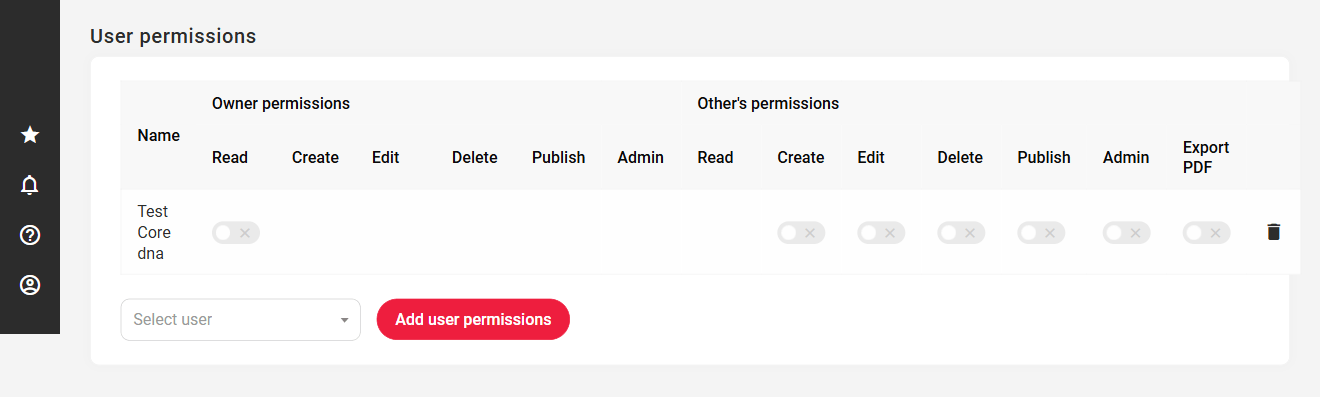
Under User permissions, you can set the permissions per individual user. This is outside whether they are the owner of the piece of content.
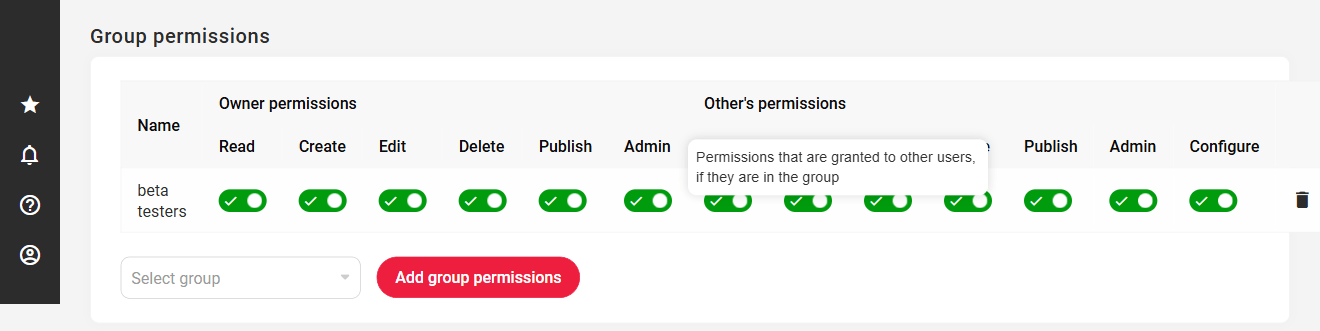
Under Group permissions you can set the permissions per user group. Groups can be an easier way to manage permissions. You can manage groups under Users » Groups.
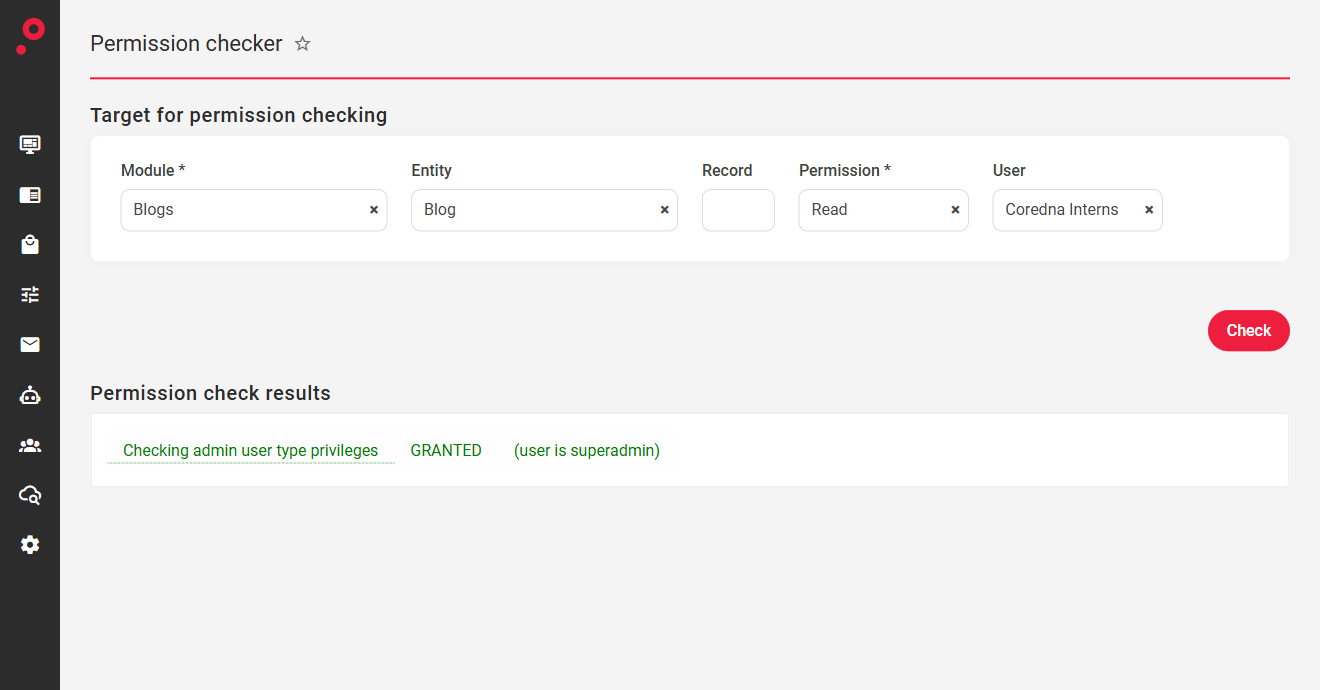
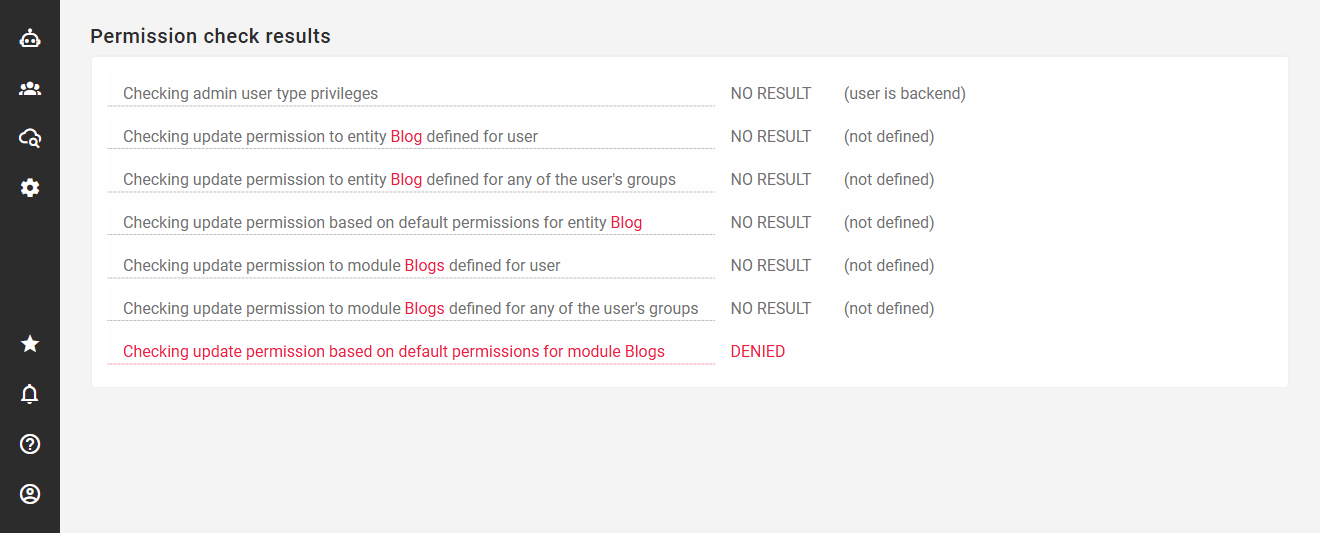
Use the permission checker to check which permissions have been applied to a specific user.
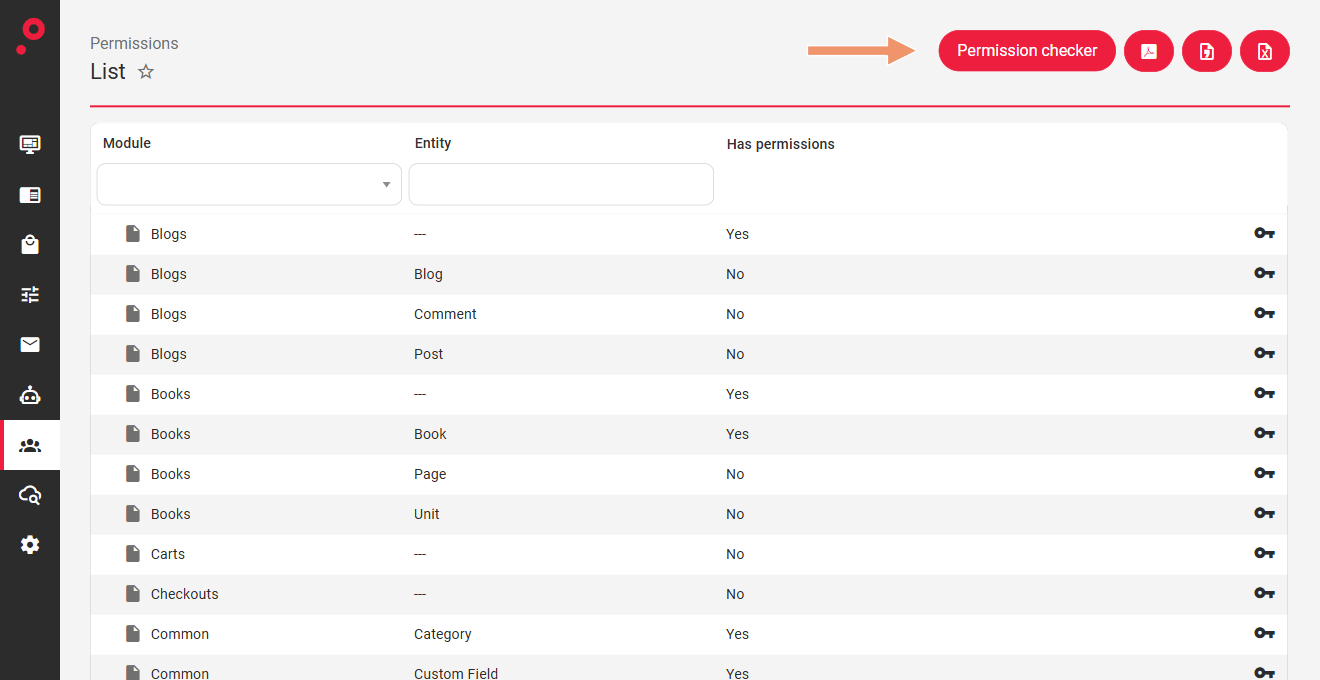
It is possible to search and filter users by Module > Entity > Record > Permission > User:
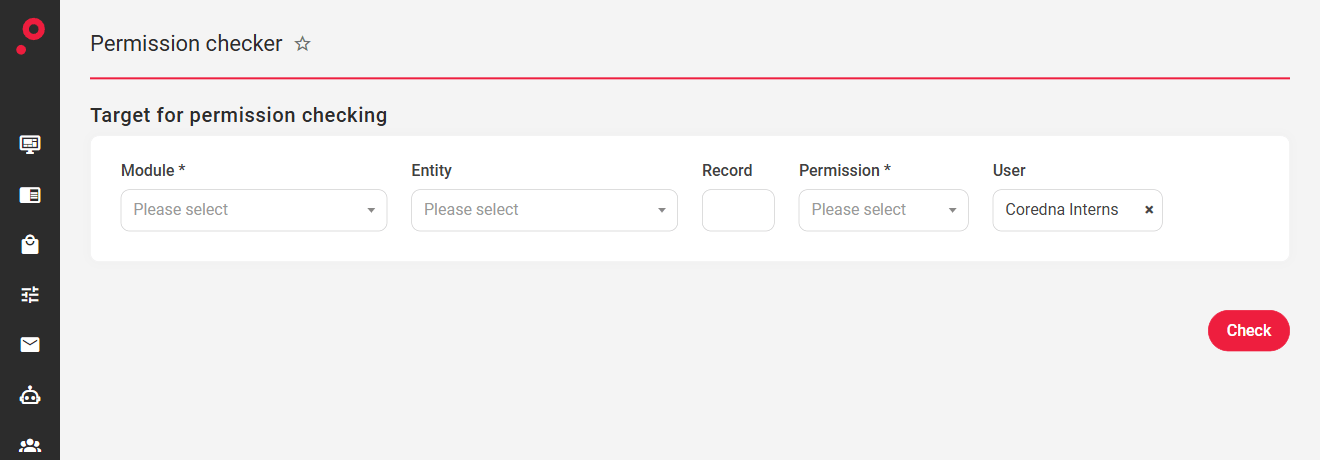
Example Granted:
Example Denied:
Was this page helpful?
Your answer goes to the docs team.