Custom fields are used to store additional information or expand the functionality within applications that are not part of the default application setup. Custom Fields are supported by Books, Layouts, Users, Products, SEO Settings and Menus applications.
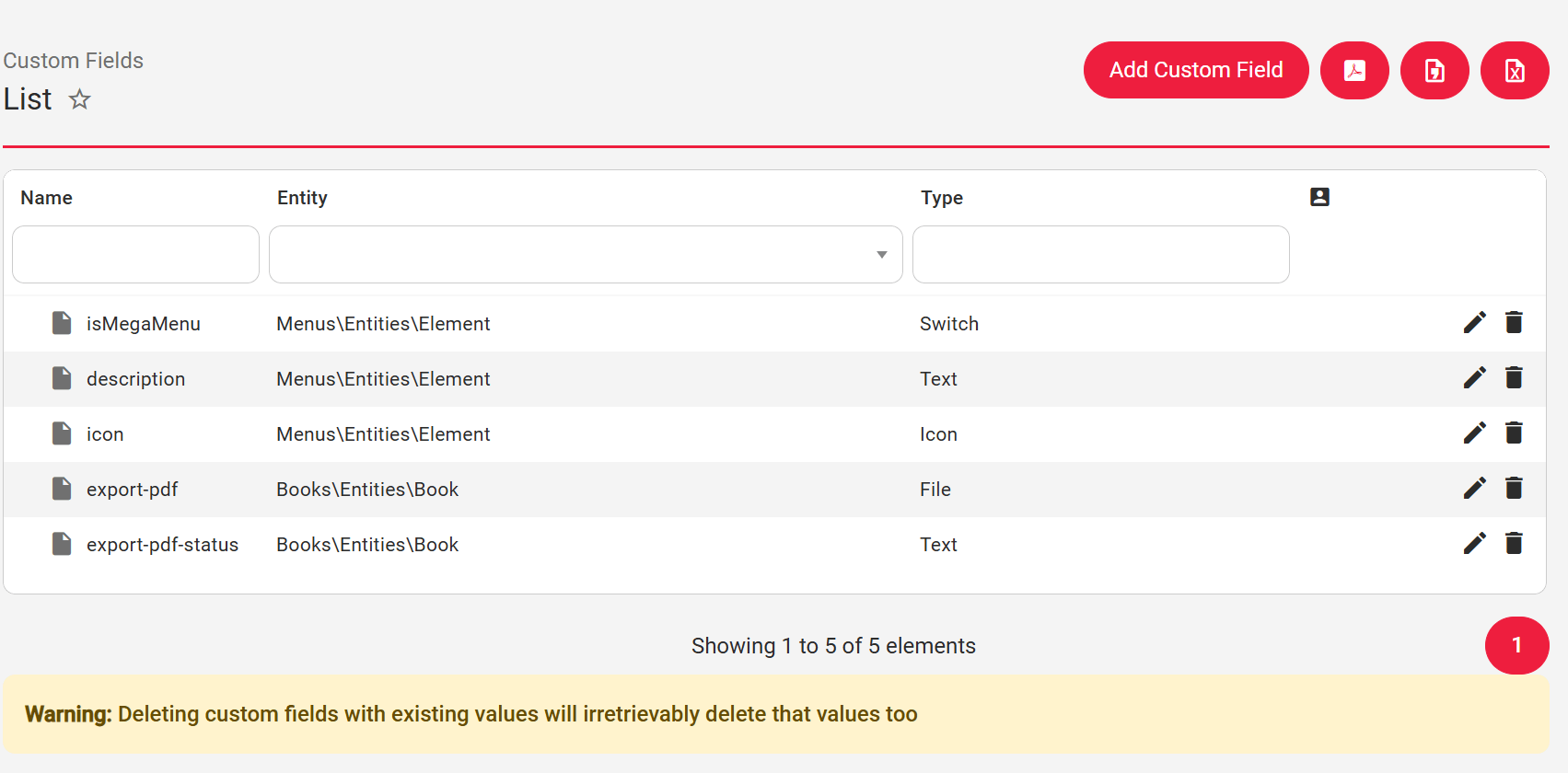
Within the Main Custom Fields Admin area it is possible to add / delete or modify any of the existing custom fields.
Warning: Deleting custom fields with existing values will irretrievably delete those values too.
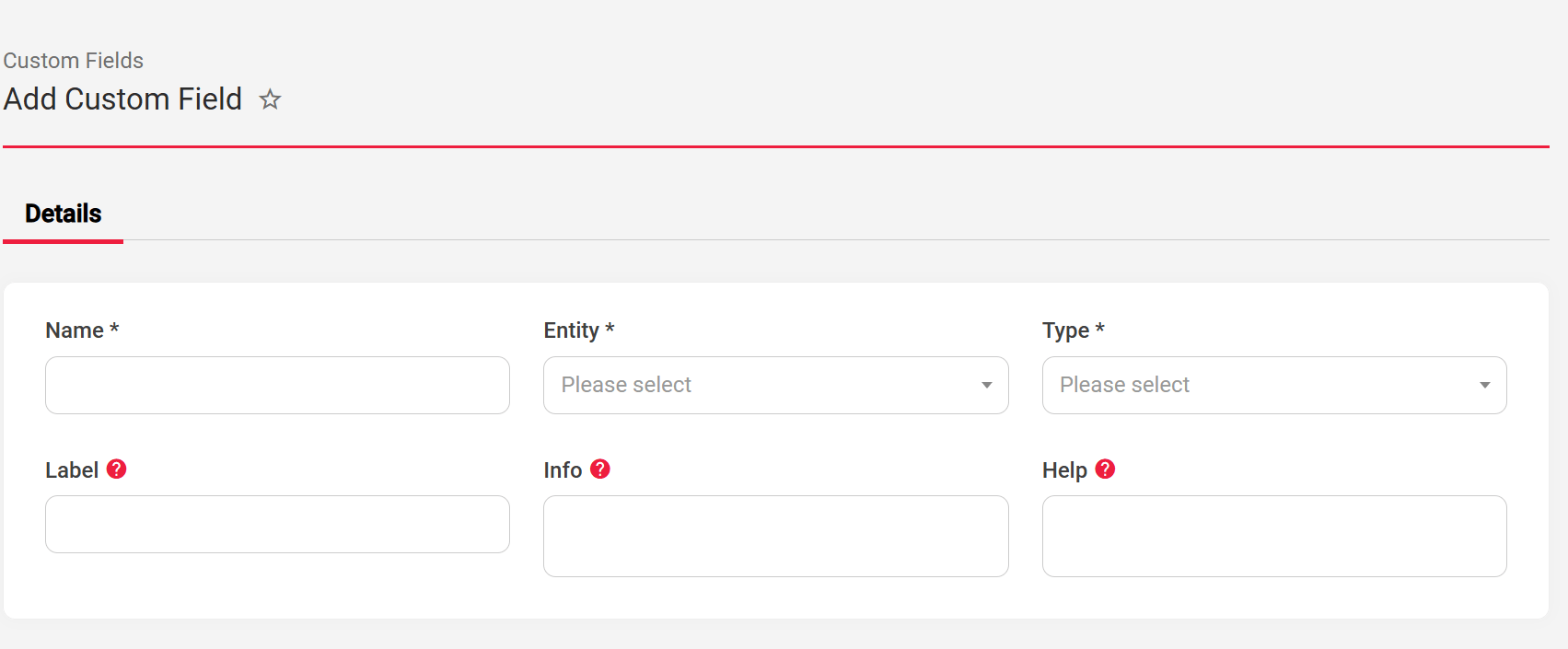
To add a new custom field to the list click on the “Add Custom Field” button positioned at the top right of the admin page.
Name: assign a name to a custom theme
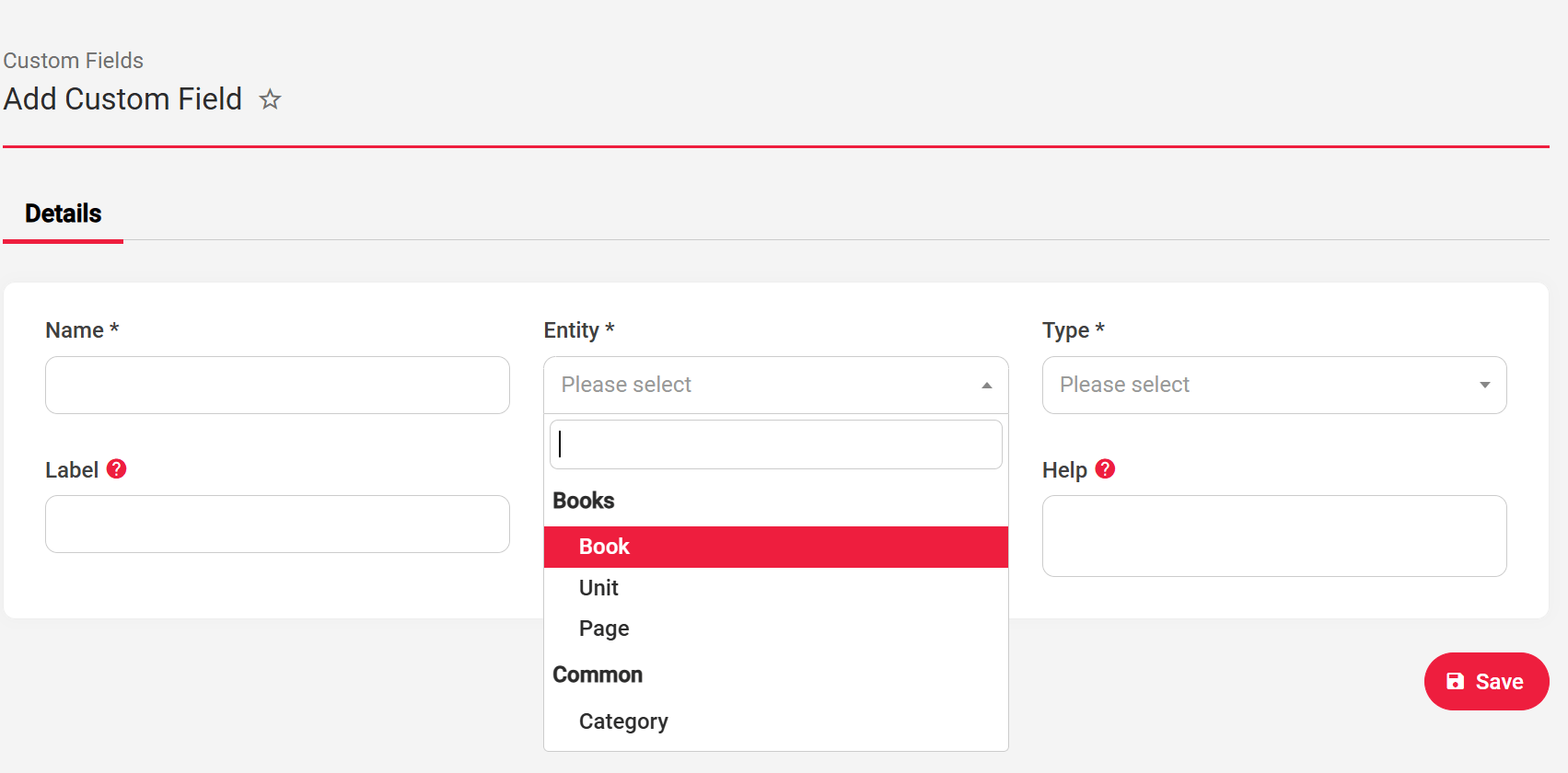
Entity: determine to which application the new custom field will be added
Type: determine which type of the custom field should be created, e.g. switch toggle, text field, multiple options etc.
Label: determine the name of the custom field that will be displayed within the application. Leave blank to keep the same name as defined in the Name field
Info: add more information about what the custom field does, this will help users to understand its purpose
Help: add more information on how to use the custom field
Default: determine the default state of the custom field, if applicable
Example:
Click “Save” to create the custom field.
The new custom field will be listed on the custom fields listing page:
Now that the custom field has been created navigate to the User section and review it. Go to Users > Users > Edit User
Within the User Edit page there is a section for custom fields where the new “Documentation” field will be included.