There may be a number of reasons you want to use the rewrite module, a typical use case would be if a URL managed to get into the search index but since it's been found by the search engine you want to update the URL. In this case you don't want that person to get a 404 (page not found error), rather you'd like to redirect them to the new corrected URL.
Rewrite usage
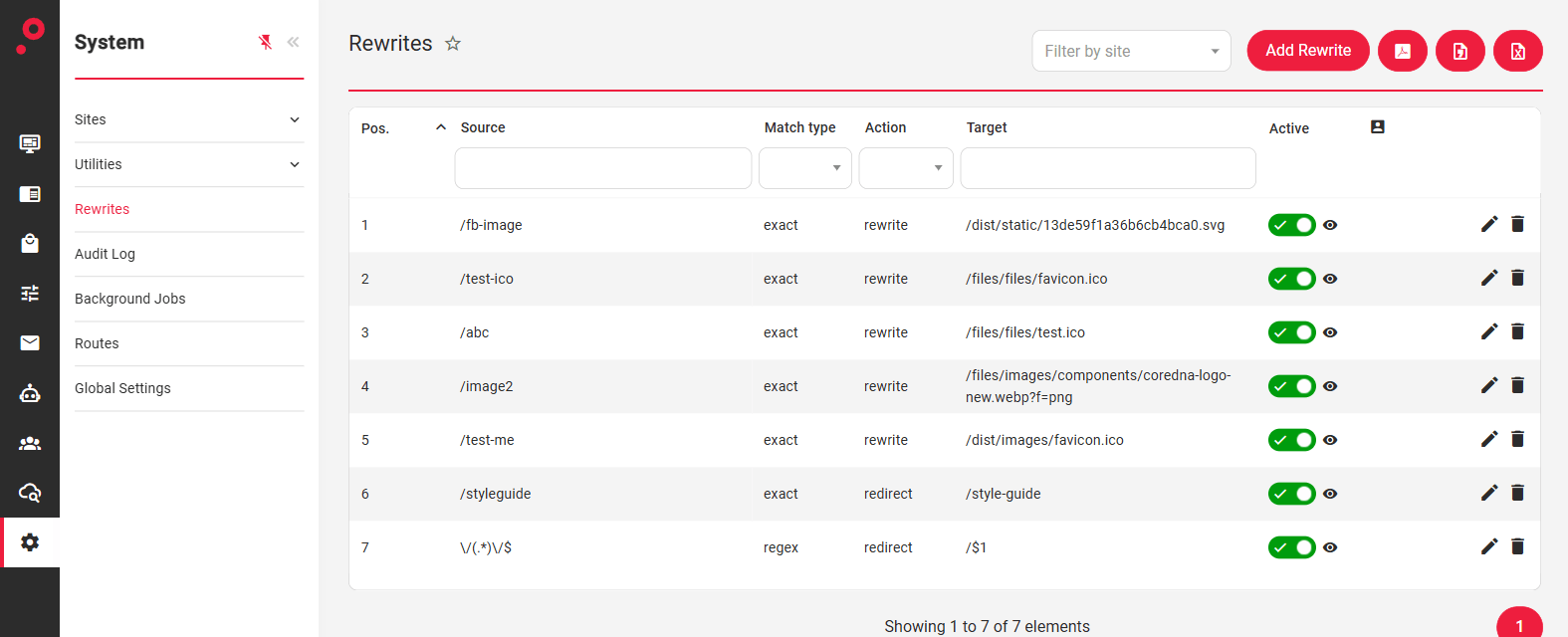
Under System » Rewrites you can create, edit and manage URL rewrites.
Manage Rewrites
You can set up the follow options for your rewrite
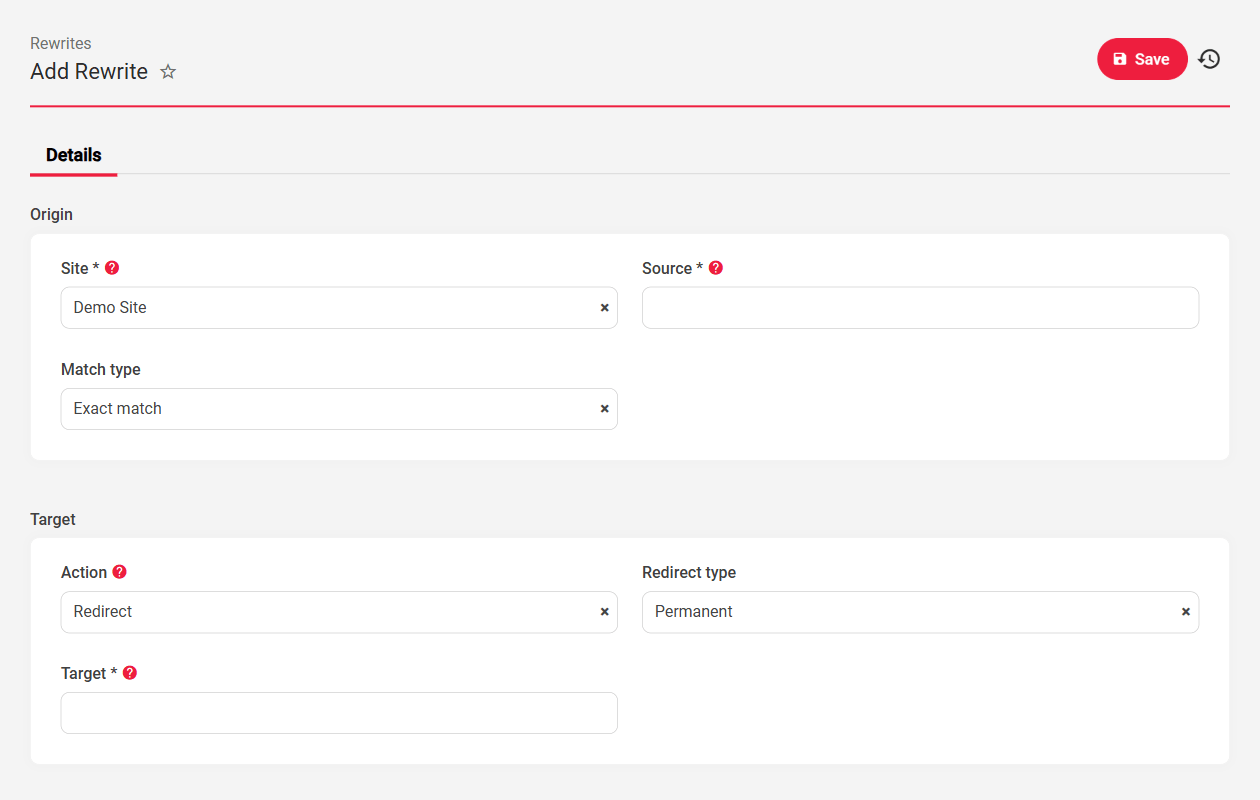
Source - e.g. /old-page the page that is likely to be requested in the first instance
Match type - you can use exact matching, or a regular expression matching
Action - you can specify a redirect or a rewrite.
redirect - loads the Target URL in the browser when the Source URL is requested
rewrite - allow you to transparently request the content from a the Target URL and make it available on the Source URL. Note: care should be taken to avoid duplicate content being made available to the search engines as content could be available in multiple locations.
Redirect type - for redirects you can add either a 301 (Permanent redirect) or 302 (Temporary redirect). This only applies when you have selected Action = redirect.
Target - e.g. /new-page the location of when you want the redirect or rewrite to point to
Active - if it can actively be used or not by the system, you can also set a date for when this should be active.
You can filter the list of rewrites by source, match type, action and target.
The preferred method to configure rewrites
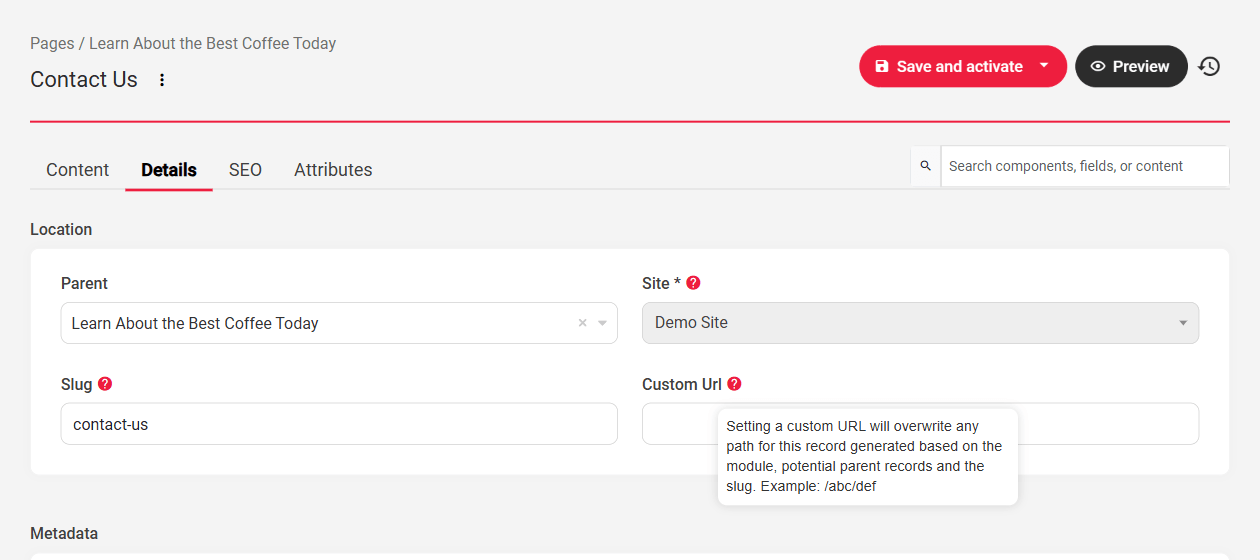
In blogs and pages users can also the Custom Url setting. This is useful for them to make a page or post appear at a specific URL.
Here you can specific a totally different URL structure out side the one that is typically generated based on the page folder structure or the blog hierarchy. Note: Custom URLs should be used without the domain name in them.
List
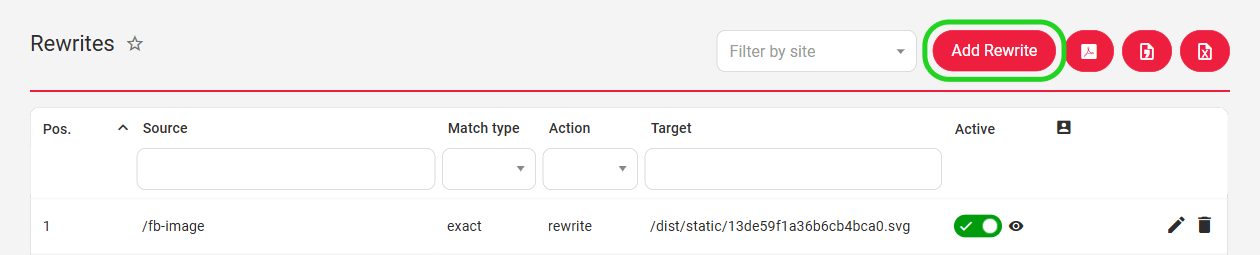
The "Rewrites" section can be found by following: System-> Rewrites
You may filter through the system for a source by entering the source into the system.
You may also choose which match type and which actions you would like to assign to the rewrite.
You must also enter the "target" into the system
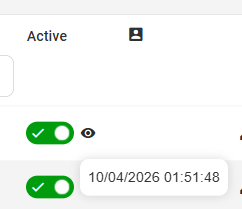
You may hover over the “eye” icon next to the Active switch to see the date from which the rewrite has been active.
Rewrites can be:
Edited - Update the details of a rewrite
Deleted - Removes the rewrite from the system
Add Rewrite
To add a rewrite you must press the "add rewrite" icon on the top, right-hand corner on the screen.
When you add a rewrite, you must fill out which source you are going to use by filling it out into the allocated section underneath "Details".
You should fill out the remaining sections by entering in your answers.
After you have completed the sections you may save your work by pressing the "Save" icon on the top right hand corner.